

To get started with TTS On-Premises, contact sales@inworld.ai for pricing and access to the container registry.
Why TTS On-Premises
Data stays in your environment
No outbound data transfer. Full ownership of text and audio.
Low-latency, real-time speech
Optimized for production workloads and interactive applications.
Designed for regulated industries
Suitable for air-gapped, private, and compliance-sensitive deployments.
Enterprise-ready deployment
Containerized architecture designed for operational stability.
How it works
Inworld TTS On-Premises is delivered as a GPU-accelerated, Docker-containerized version of the Inworld TTS API. It exposes both REST and gRPC APIs for easy integration.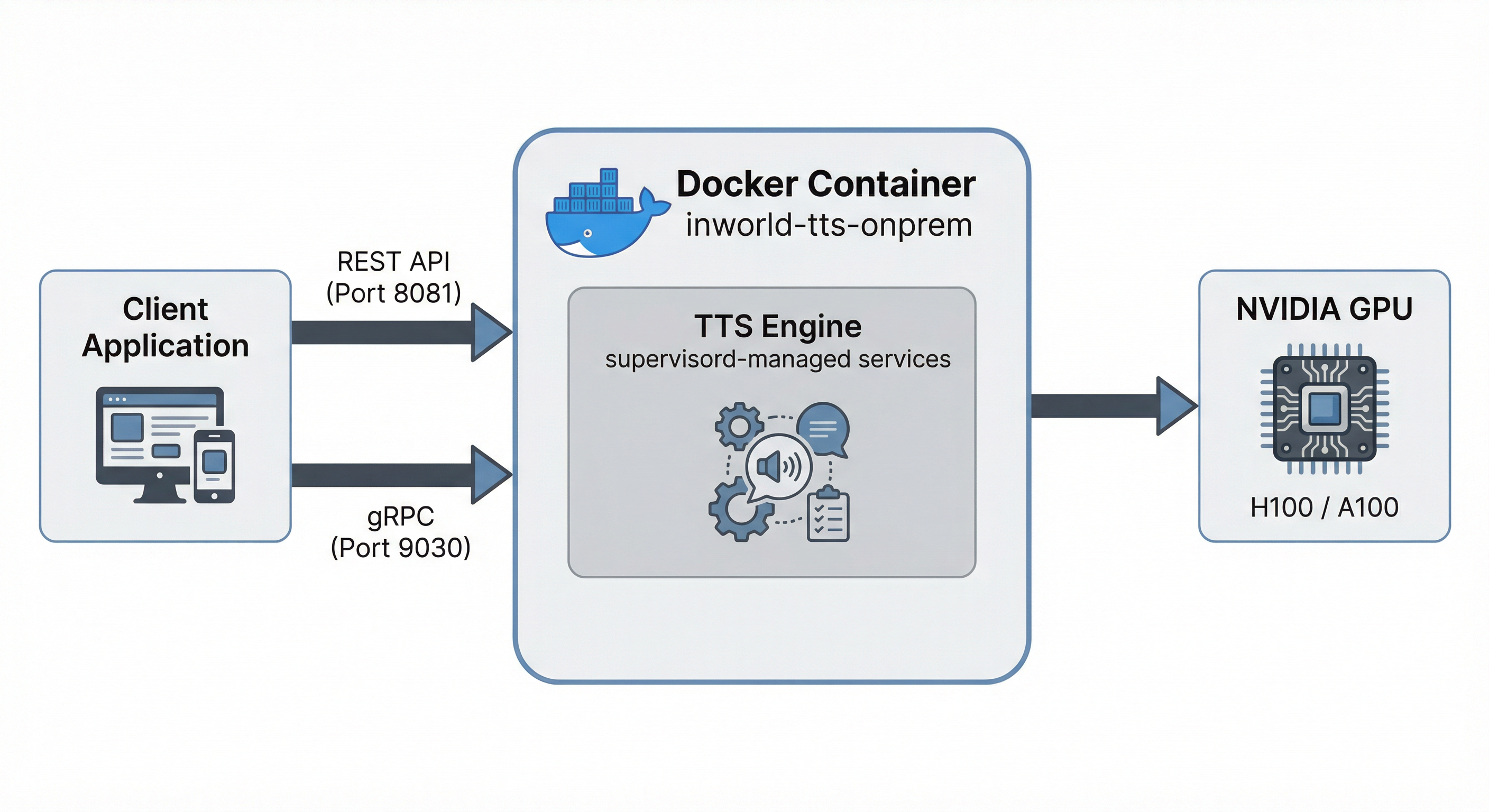
Performance
- Latency: Real-time streaming on supported NVIDIA GPUs
- Throughput: Multiple concurrent sessions are supported depending on the GPU being utilized
Contact sales@inworld.ai to get a detailed performance report for your specific hardware.
System requirements
Inworld TTS supports all modern cloud NVIDIA GPUs: A100s, H100s, H200, B200, B300. If you have a specific target hardware platform not on this list, please reach out for custom support. The minimum inference machine requirements are as follows:Prerequisites
Before deploying TTS On-Premises, ensure the following software is installed on your Ubuntu 22.04 LTS machine.NVIDIA drivers
Install the latest NVIDIA drivers for your GPU. Follow the official guide at nvidia.com/drivers, or use the following commands on Ubuntu:Docker
Install Docker Engine by following the official guide: Install Docker Engine on Ubuntu. Optionally, add the current user to thedocker group so you can run Docker without sudo: Linux post-installation steps.
NVIDIA Container Toolkit
Install the NVIDIA Container Toolkit to enable GPU access from Docker containers. Follow both the Installation and Configuration sections of the official guide: NVIDIA Container Toolkit install guide.Google Cloud SDK
Install the gcloud CLI by following the official guide: Install the gcloud CLI.Verify prerequisites
Run the following command to verify that Docker, NVIDIA drivers, and the NVIDIA Container Toolkit are all correctly installed:Firewall requirements
The TTS On-Premises container listens on the following ports for inbound traffic:
You will also need to allow the following outbound traffic:
us-central1-docker.pkg.devon port 443 — GCP Artifact Registry for pulling container images
Quick start
1. Create a GCP service account
Create a service account in your GCP project and generate a key file:2. Share the service account email with Inworld
Send the service account email (e.g.,inworld-tts-onprem@<YOUR_GCP_PROJECT>.iam.gserviceaccount.com) to your Inworld contact. Inworld will provide your Customer ID.
3. Authenticate to the container registry
4. Configure
onprem.env with your values:
5. Start
- Check prerequisites (Docker, GPU, NVIDIA Container Toolkit)
- Validate your configuration
- Fix key file permissions if needed
- Pull the Docker image
- Start the container
- Wait for services to be ready (~3 minutes)
The ML model takes approximately 3 minutes to load on first startup. This is normal.
6. Verify the deployment
Check that the container is running and services are healthy:7. Send a test request
List available voices
Lifecycle commands
Available images
Registry:
us-central1-docker.pkg.dev/inworld-ai-registry/tts-onprem/
Configuration
onprem.env
Logs
Troubleshooting
Advanced: manual Docker run
For users who prefer to run Docker directly withoutrun.sh:
- Ensure your key file has 644 permissions:
chmod 644 service-account-key.json - The container exposes port 8081 (HTTP) and 9030 (gRPC)
- Use
docker psto check container health — STATUS will showhealthywhen ready
Benchmarking
For performance testing, see the Benchmarking guide.FAQs
Can I use the on-premises container for production applications?
Can I use the on-premises container for production applications?
Yes. The on-premises container is designed for production workloads. To get started, contact sales@inworld.ai for access to the repository.
Why choose on-premises instead of cloud TTS?
Why choose on-premises instead of cloud TTS?
For complete data control, low latency, and compliance with strict security or regulatory requirements.
Does any data leave my environment?
Does any data leave my environment?
No. All text and audio processing occurs entirely within your environment.
How long does it take to deploy?
How long does it take to deploy?
Deployment takes just a few minutes, with a brief model warm-up (~200 seconds).
Who is this best suited for?
Who is this best suited for?
Enterprises, governments, and regulated industries that cannot use cloud-based TTS.
What is included in the on-premises container?
What is included in the on-premises container?
In-scope:
- API compatibility with Inworld public API
- All built-in voices in Inworld’s Voice Library
- The following model capabilities: text normalization, timestamps, and audio pre- and post-processing settings
- Deployment how-to’s and latency benchmarks reproduction scripts
- Instant voice cloning features and their APIs
- Voice design and its API