

Make your first streaming TTS API request
This quickstart walks through making your first streaming API request, which we recommend for realtime, low-latency applications. For batch audio generation, pre-rendered content, and anywhere latency isn’t critical, see Make a non-streaming request below.Create an API key
Create an Inworld account.In Inworld Portal, generate an API key by going to Settings > API Keys. Copy the Base64 credentials.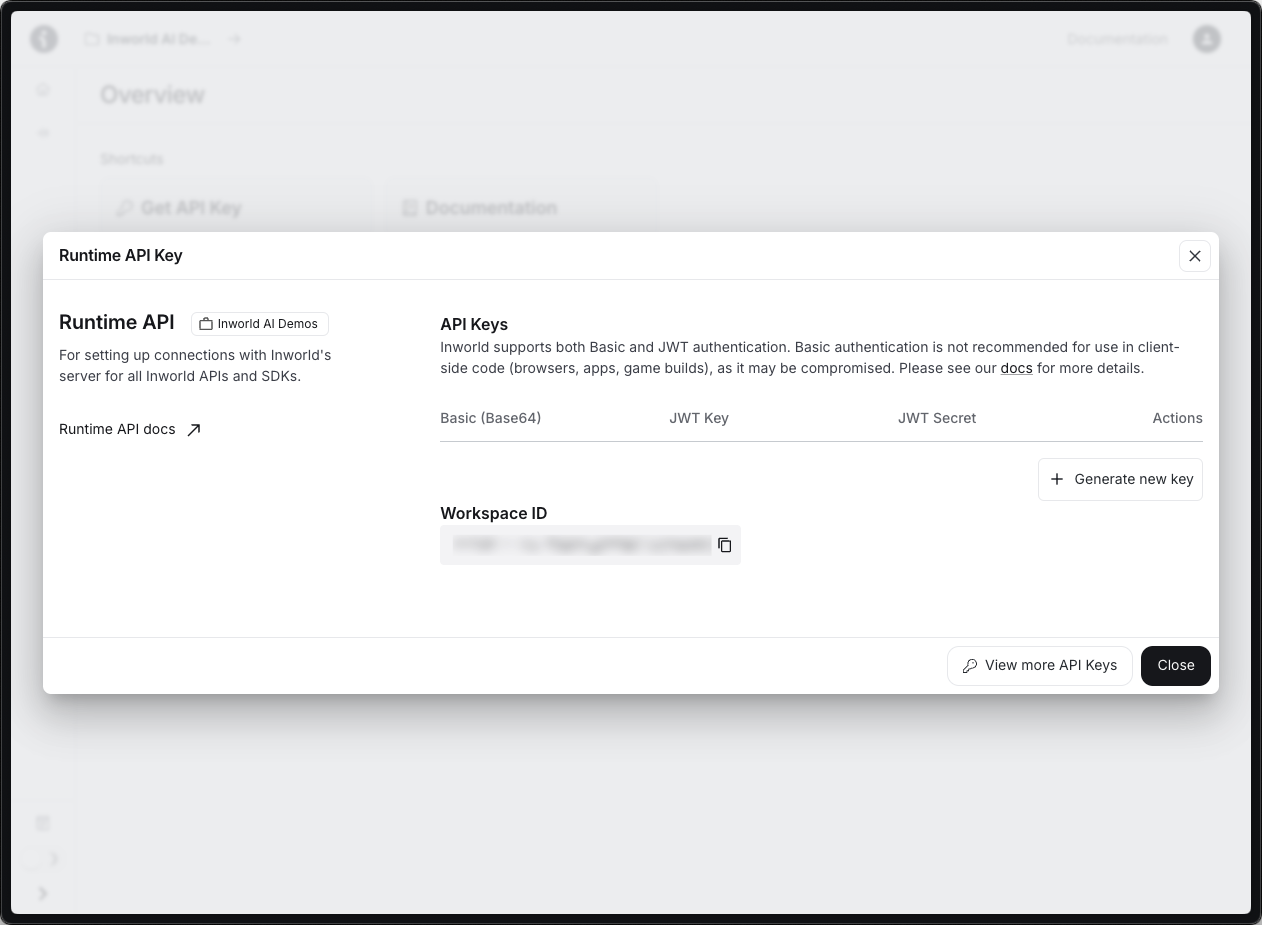
Prepare your first streaming request
Create a new file called
inworld_stream_quickstart.py or inworld_stream_quickstart.js, confirm INWORLD_API_KEY is set in your environment, and copy the code below into the file. This example uses the WAV encoding so the streamed chunks can be written directly into a single .wav file — the WAV header arrives on the first chunk and the rest are raw PCM samples.This example uses
WAV, where the streaming response carries one WAV header on the first chunk and raw PCM samples on the rest — so naive concatenation produces a valid .wav file. If you instead use LINEAR16, every chunk is a complete WAV file on its own and concatenating them directly will produce audible clicks at chunk boundaries; you’ll need to strip the per-chunk RIFF headers yourself, or use WAV instead for direct .wav output. PCM is raw headerless sample data, so only use it if your client will handle containerization or playback itself, such as by adding a WAV header or feeding the samples to an audio API. See Generating Audio for the full format reference.Make a non-streaming request
The synchronous endpoint is the simplest way to try Realtime TTS and works well for batch audio generation, pre-rendered content, and anywhere latency isn’t critical. Assuming you’ve already set up your API key and installed the SDK:Prepare your first request
For Python or JavaScript, create a new file called
inworld_quickstart.py or inworld_quickstart.js. Copy the corresponding code into the file.Next Steps
Now that you’ve tried out the Realtime TTS API, you can explore more Realtime TTS capabilities.Realtime TTS
Understand the capabilities of Inworld’s Realtime TTS models.
Voice Cloning
Create a personalized voice clone with as little as 3 seconds of audio.
Best Practices
Learn tips and tricks for synthesizing high-quality speech.