

Get Started
Go to Inworld Portal
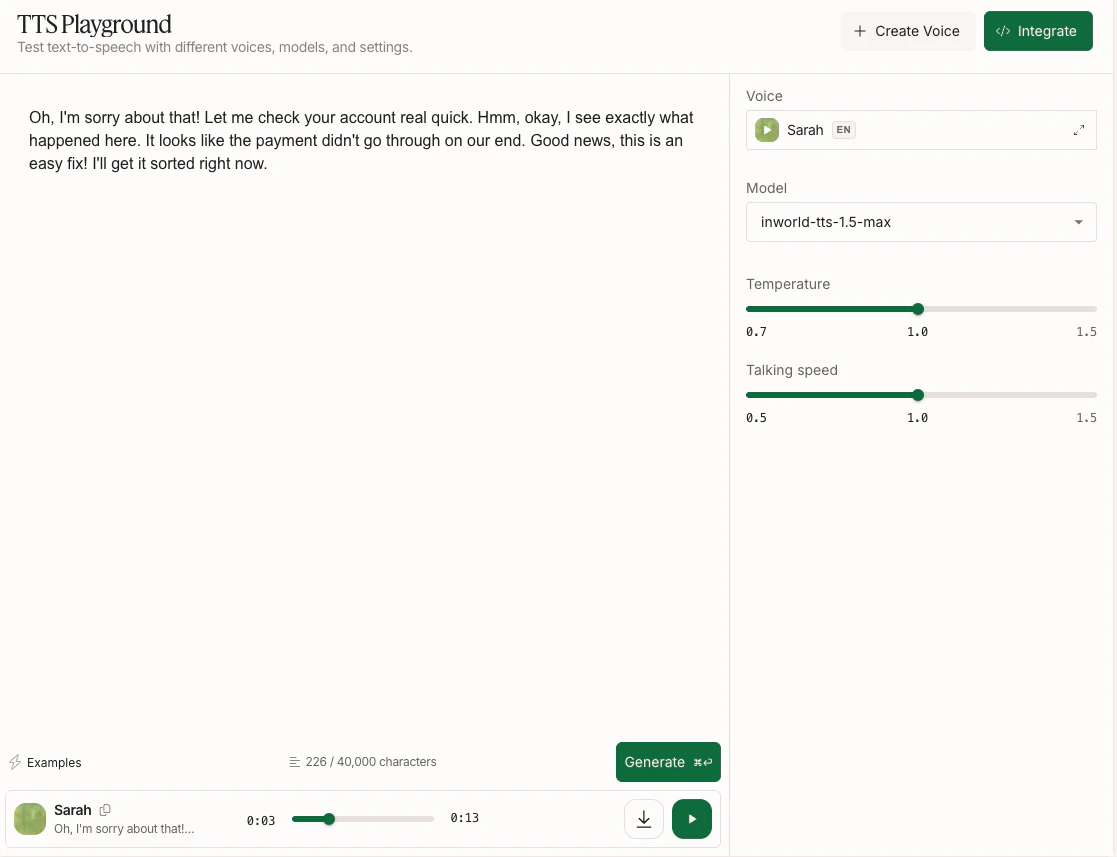
In Portal, select TTS Playground from the left-hand side panel.
Enter text
Enter the text you want to convert to speech. If you need some ideas, you can select one of the suggestion chips at the bottom of the screen. Note that character limits in TTS playground depend on your plan, see the Pricing page for details. You can also use our API to generate longer content, see Long Text Input.
Select a voice
On the right-hand side, click on the voice dropdown to browse available voices. You can filter by language or search by name, and click the play button next to each voice to hear how the voice sounds. Select a voice.
Advanced Features
For greater control over the generated audio, you can try out the following:- Try a different model - Select a different model from the right-hand side panel to see how it compares. See Models for more information about each model.
- Adjust configurations - Use the sliders on the right-hand side panel to adjust Temperature and Talking Speed. See here for more information.
- Add pauses - Try adding SSML break tags like
<break time="1s" />to insert pauses in your speech. See Pause Controls for more information.
Create a Voice
In the TTS Playground, click + Create a Voice to design a new voice from a text description or clone one from audio:- Voice Design — Describe the voice you want in text (age, accent, tone, etc.) and get AI-generated voice candidates
- Voice Cloning — Clone a voice from as little as 3 seconds of audio (up to 15 seconds — longer samples improve similarity)
Multi-Voice Generation
Create a multi-speaker composition — a dialogue, scene, or podcast — with a different voice per line, generated as a single stitched track.Add a speaker
Click Add Speaker to add a line. Each line has its own voice, model, and settings, plus inline steering tags like
[laugh].Generate all
Enter the text for each speaker and click Generate All to synthesize and stitch every line into one track. Regenerate any line individually to refine it — the combined audio updates automatically.
Audio Generation History
Open the History panel using the button next to Generate at the bottom of the playground. Every clip you generate is automatically saved there, capturing the voice, model, and text used. From the History panel you can:- Replay any past generation instantly — cached audio plays without re-running the model
- Reload settings into the playground — send a past entry back to populate the text, voice, model, and all generation parameters in one click
- Search and filter by text content, voice, model, or date
- Bulk manage entries — enter Manage mode to multi-select for download or deletion
- Download individual takes as MP3 with one click
Next Steps
Ready for more? Whether you’re looking to clone a voice, design one from text, or start building with our API, we’ve got you covered.Voice Design
Create a voice from a text description—no audio needed.
Voice Cloning
Create a personalized voice clone with as little as 3 seconds of audio.
Best Practices
Learn tips and tricks for synthesizing high-quality speech.
Quickstart
Learn how to make your first API call in minutes.