

Importing data from your analytics platforms is coming soon!
Mixpanel
Export router exposure data to your existing Mixpanel project for product analytics. When a user is exposed to a router, it is sent as an event to your Mixpanel project, including details on router, route, and variant — so you can build dashboards and analyze routing performance in Mixpanel.Find your Mixpanel Project ID
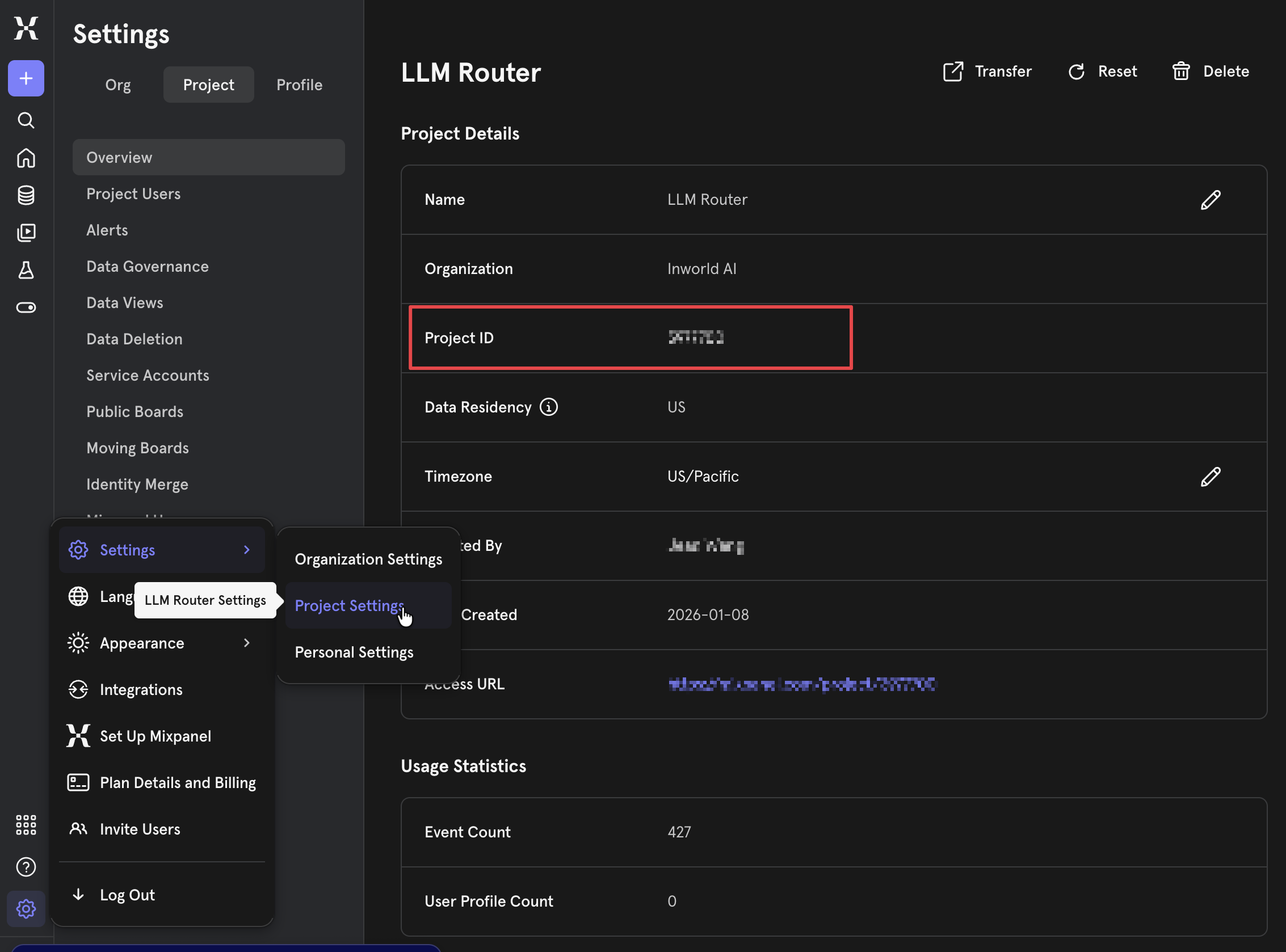
Create a service account
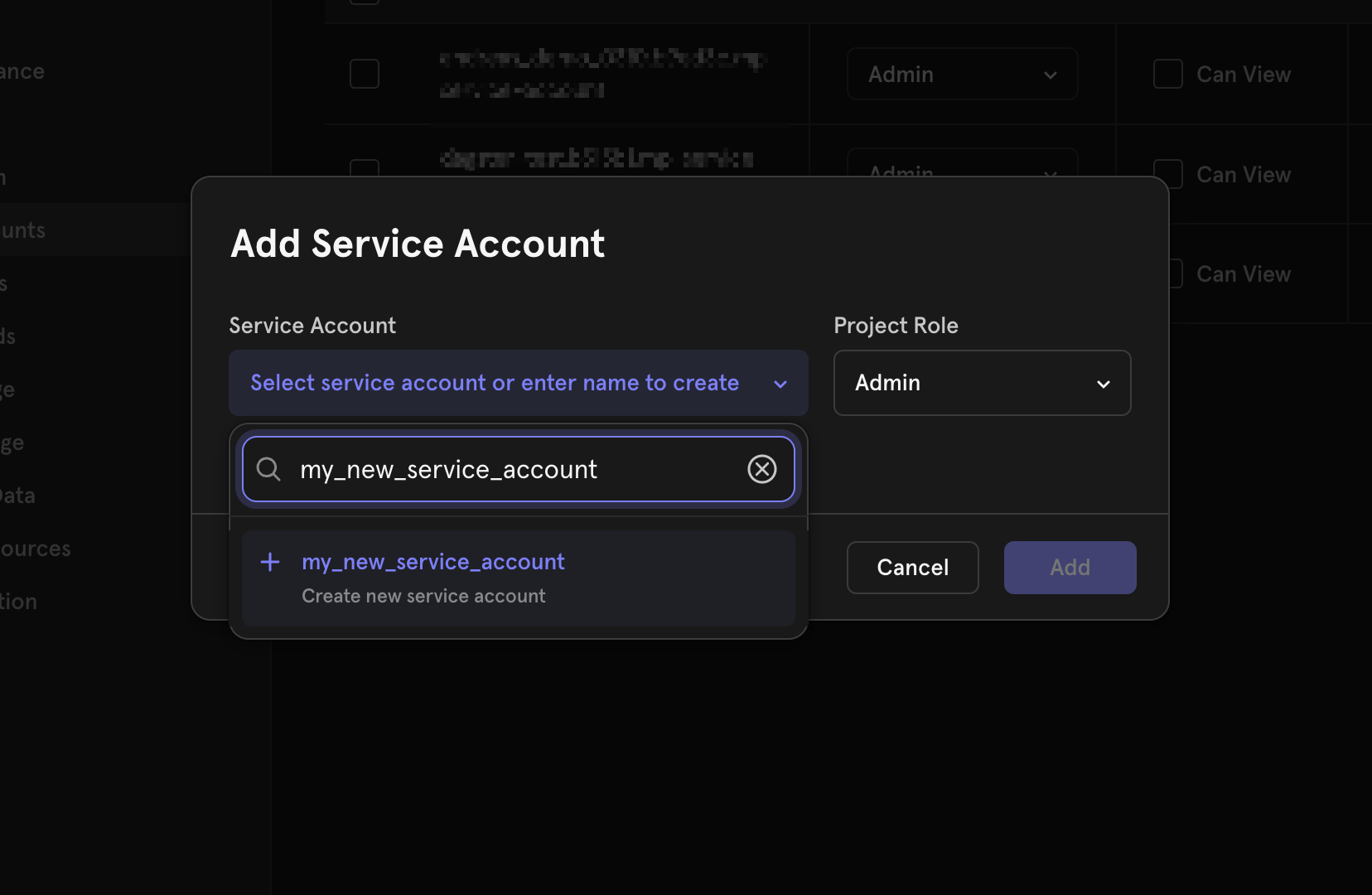
+ button to create your new service account. Set the Project Role to Admin or Owner. Set Expires to Never.Click Add and copy the username and secret — you will not be able to view the secret again.Configure the integration in Portal
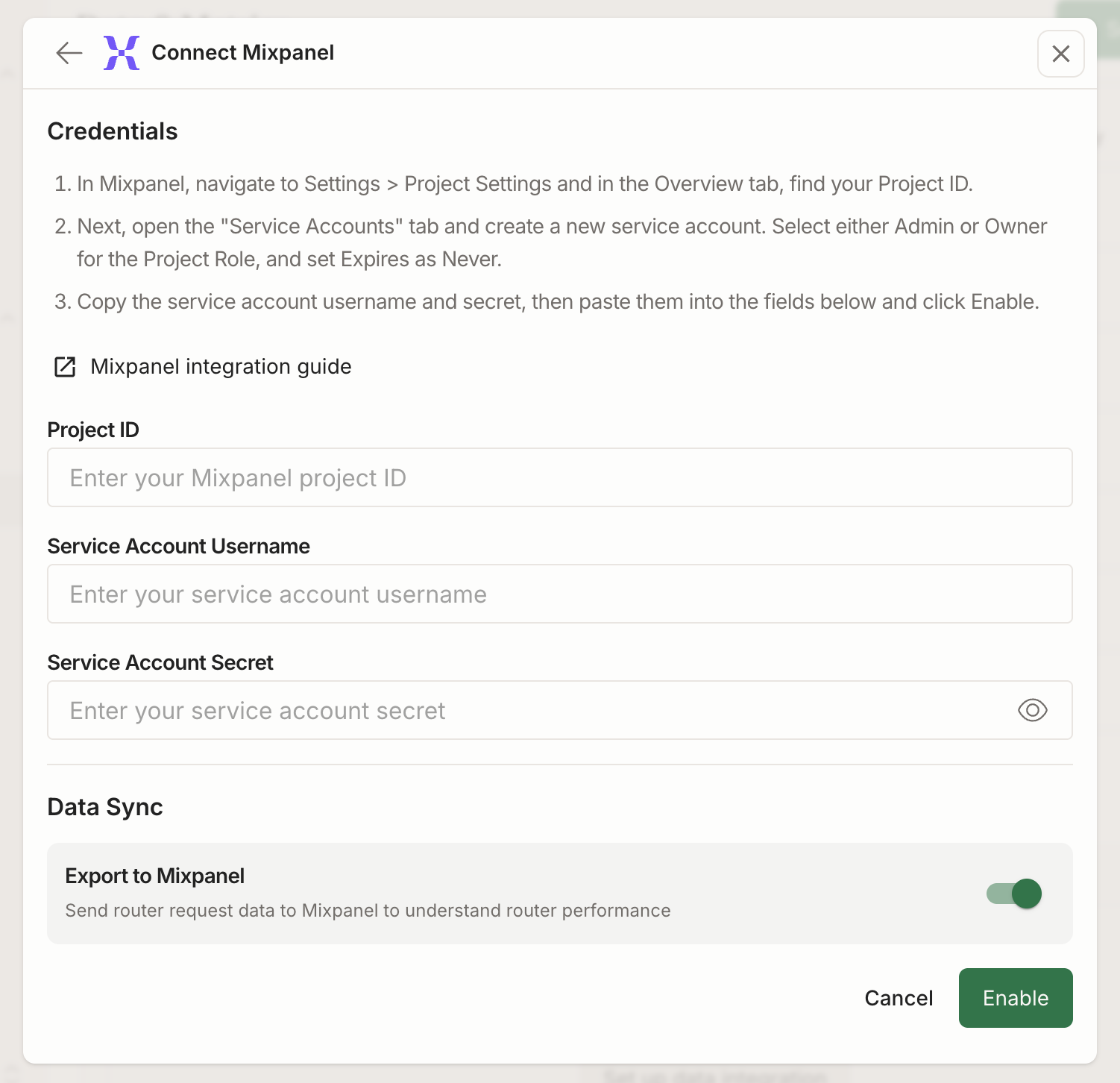
| Field | Value |
|---|---|
| Project ID | Your Mixpanel project ID from Step 1 |
| Service Account Username | The service account username from the Step 2 |
| Service Account Secret | The service account secret from Step 2 |
Make a request to your router
Now call the Chat Completions API with your router, populating the Mixpanel Distinct ID that corresponds to the user who this request is for in the The router exposure data will match the
user field when making the request:user to the Mixpanel Distinct ID when creating events in Mixpanel, so you can tie the specific request to the right user.View events in Mixpanel
The router exposure data will flow to your Mixpanel project automatically (data will sync every ~8 hours). You will see an event for each router, route, and variant that a user was exposed to every hour.Each event will include: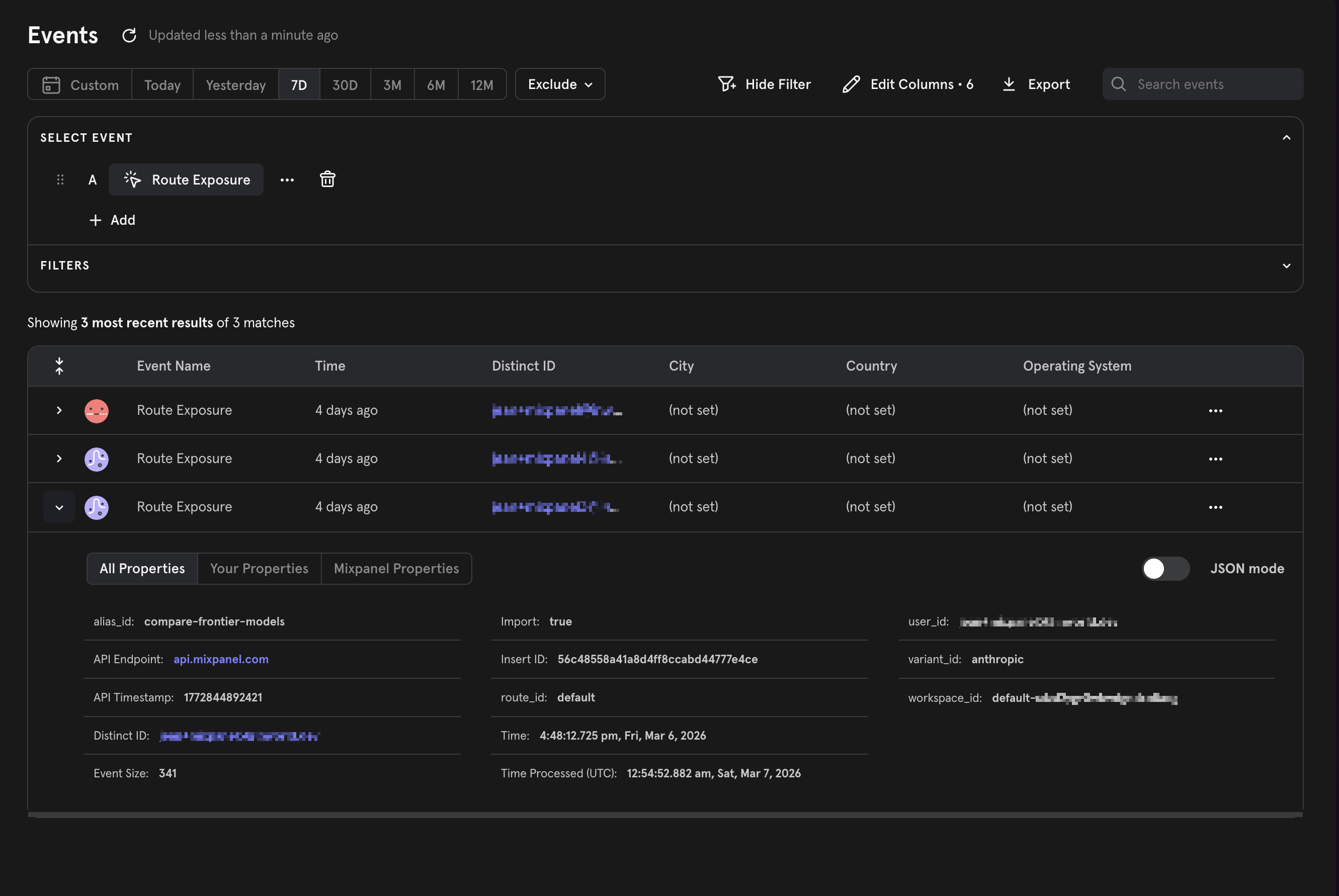
alias_id- This is your router’s idroute_id- This is the route that the user was routed tovariant_id- This is the variant that the user was exposed toTime- This is time of the most recent event in the hourly time bucket in which the user was exposed to this router, route, and variant
user field of the request.Analyze your data
Now you can use this event exposure data to understand how different routes and variants impact your metrics.We recommend creating a Borrowed Event Property. To do so, create a Custom Event Property and select Computed > Borrow Property. Select the 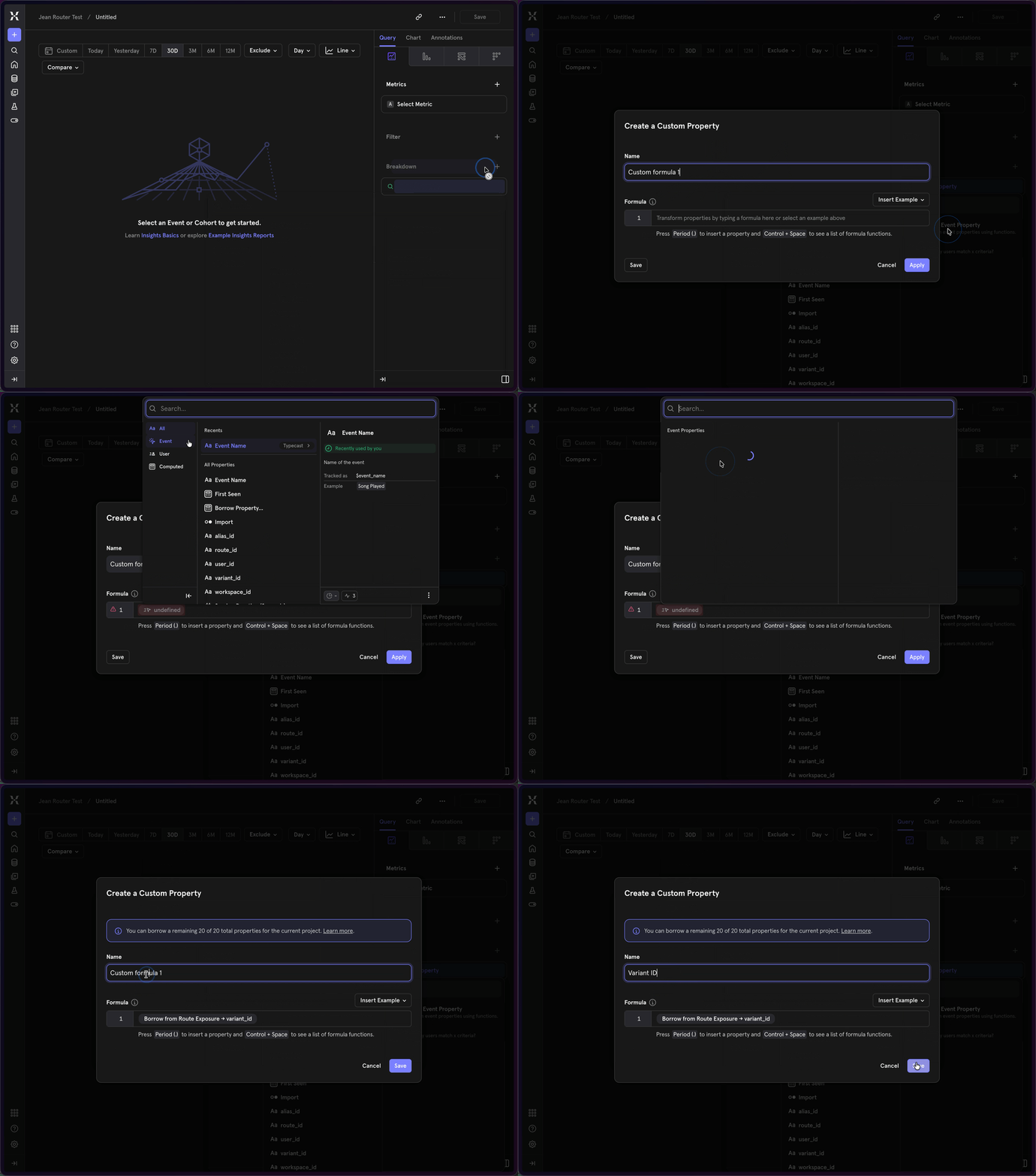
Route Exposure event and alias_id, route_id, or variant_id based on what property you want to analyze your data by.BigQuery
Export router exposure data to your existing BigQuery project for product analytics. When a user is exposed to a router, it is sent as an event to your BigQuery project, including details on router, route, and variant — so you can analyze routing performance directly from BigQuery.Configure the integration in Portal
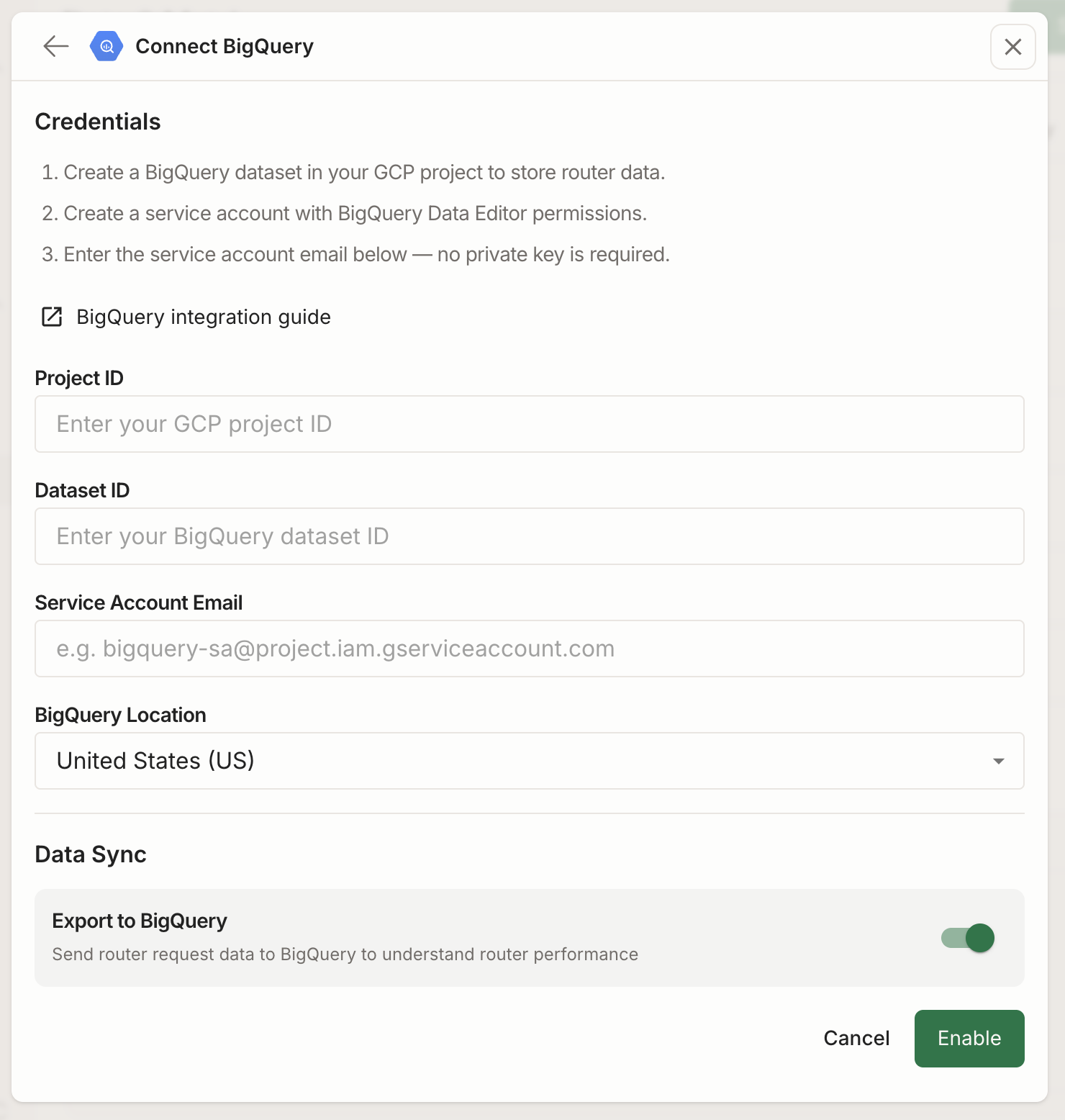
| Field | Value |
|---|---|
| Project ID | Your GCP project ID |
| Dataset ID | Your dataset ID from Step 1 |
| Service Account Email | The service account email from the Step 2 |
Make a request to your router
Now call the Chat Completions API with your route, populating the a unique user id corresponds to the user who this request is for in the
user field when making the request. The router exposure data will include the user in the data export, so you can tie the specific request to the right user.Analyze your data BigQuery
The router exposure data will flow to your BigQuery project automatically (data will sync every ~8 hours). You will see an event for each router, route, and variant that a user was exposed to every hour.Each event will include:
alias_id- This is your router’s idroute_id- This is the route that the user was routed tovariant_id- This is the variant that the user was exposed touser_id- The user that was exposed to thie router, route, and varianttime- This is time of the most recent event in the hourly time bucket in which the user was exposed to this router, route, and variant