

- Voice description - A text description of the voice you have in mind (e.g., age, gender, accent, tone, pitch).
- Script - The text the voice will speak. This shapes the generated voice, so using a script that matches the intended voice produces the best results.
Voice Design is currently in research preview. Please share any feedback with us via the feedback form in Portal or in Discord.
Design a Voice in Portal
Go to Inworld Portal
In Portal, select TTS Playground from the left-hand side panel. Click Create Voice and select Design.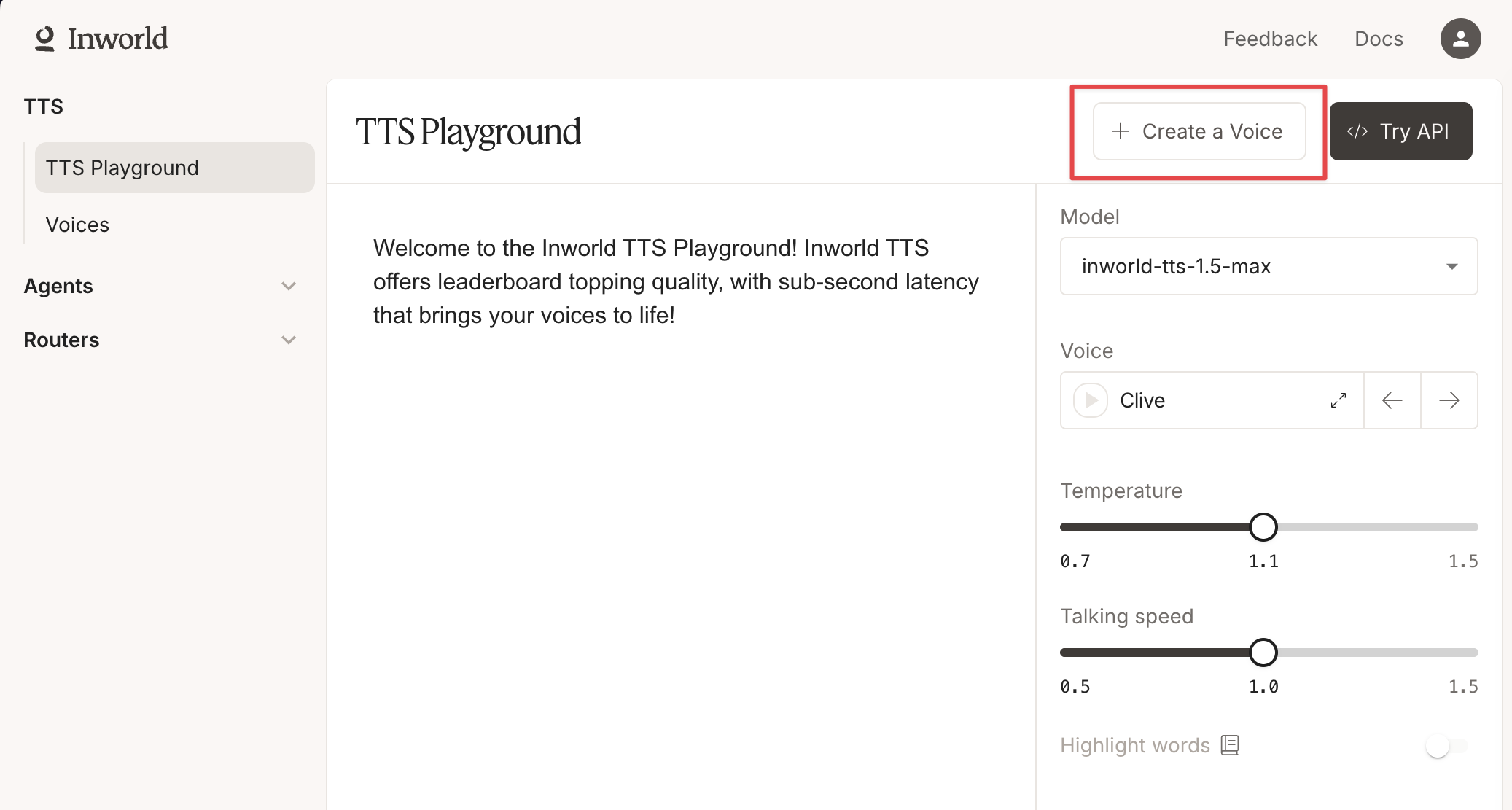
Write a voice description
Describe the voice you want to create. The description must be in English and be between 30 and 250 characters.Keep your description concise but specific, so the model can most accurately produce what you have in mind. A good voice description should include:
- Gender and age range (e.g., “a mid-20s to early 30s female voice”, “a middle-aged male voice”)
- Accent (e.g., “British accent”, “Southern American accent”)
- Pitch and pace (e.g., “low-pitched”, “fast-paced”, “steady pace”)
- Tone and emotion (e.g., “warm and friendly”, “authoritative and composed”)
- Timbre (e.g., “rich and smooth”, “slightly raspy”, “clear and bright”)
Select a language
Choose the language for your generated voice. If you’re using the auto-generated script, the script will be written in your selected language.
Choose a voice script
Select how you want to provide the script that the voice will speak:
- Auto-generate script - The system automatically generates a script that matches your voice description in the selected language. This is the easiest option and works well for most use cases.
- Write my own - Write a custom script for the voice to speak. For best results, scripts should result in 5 to 15 seconds of audio, which is roughly between 50 and 200 characters in English.
Generate and preview voices
Click Generate voice, which will create 3 voice previews. Listen to each preview by clicking the play button, then select the voice(s) you want to keep.Each generation produces slightly different results. If the first set of voices doesn’t sound right, click Generate voice again to regenerate or adjust your description and voice script to better match what you have in mind before regenerating.
Save your voice
After selecting one or more voices, give each voice a name, add optional tags, and save them to your voice library. Your designed voices will appear alongside your other voices in the TTS Playground.
Use your voice via API
To use your designed voice via API, copy the voice ID from the TTS Playground. Use that value for the
voiceId when making an API call. See our Quickstart to learn how to make your first API call.