> ## Documentation Index
> Fetch the complete documentation index at: https://dev.docs.inworld.ai/llms.txt
> Use this file to discover all available pages before exploring further.
# Professional Voice Cloning
> Fine-tune a highly similar, stable voice clone from a larger set of audio samples
Professional Voice Cloning is currently in beta and available through early access only — it's not yet available to everyone. It's only available through Portal and is not yet supported via the Voice Cloning API. If you need Professional Voice Cloning immediately, please [contact sales](https://inworld.ai/contact-sales).
Professional Voice Cloning produces a voice clone that's more similar to the original speaker and more stable than [Instant Voice Cloning](/tts/instant-voice-cloning), in exchange for more audio and an asynchronous training step instead of an instant result.
## Create a Professional Voice Clone in Portal
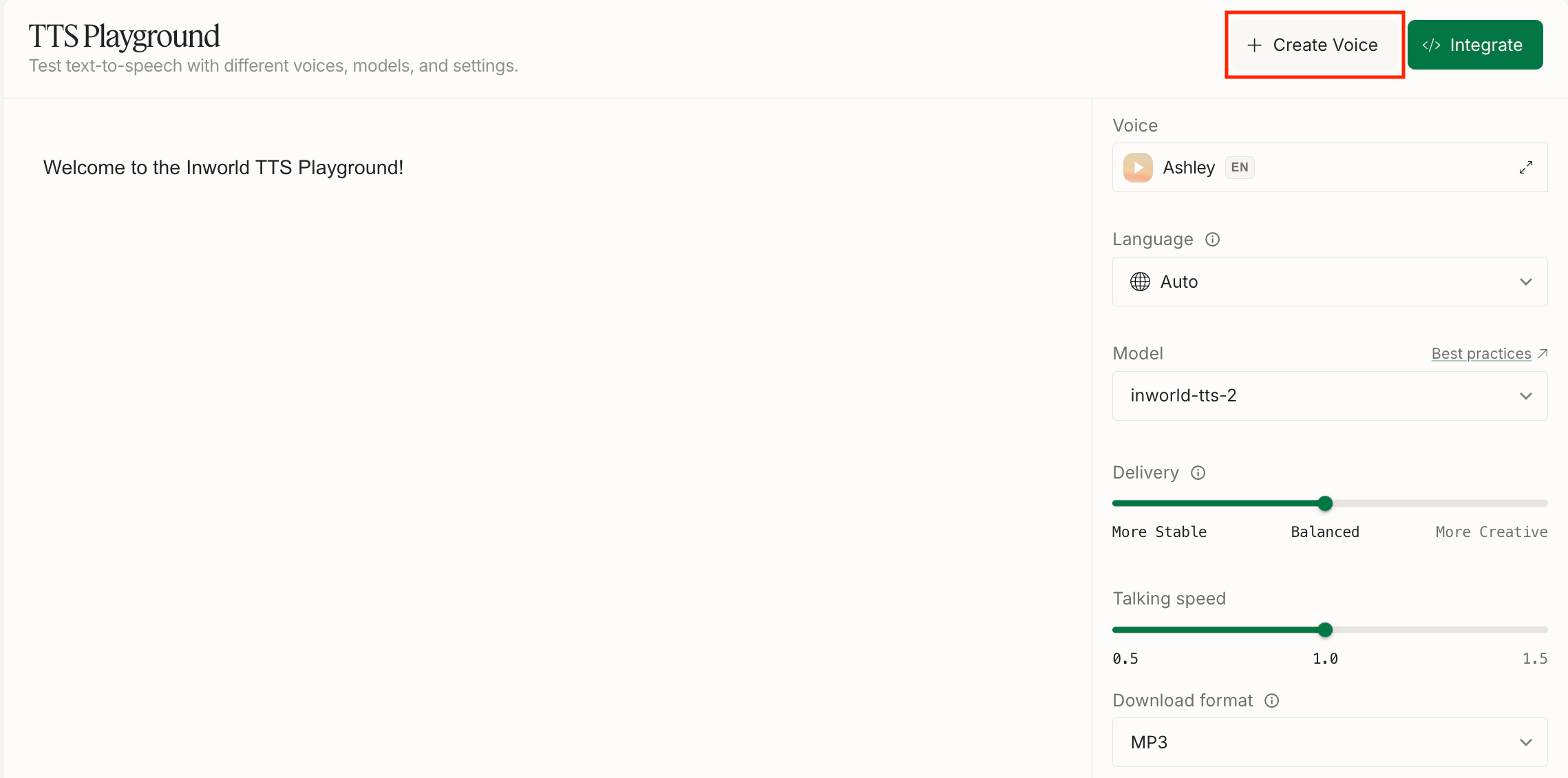 In Portal, select **TTS Playground** from the left-hand side panel. In the TTS Playground, click **Create Voice**.
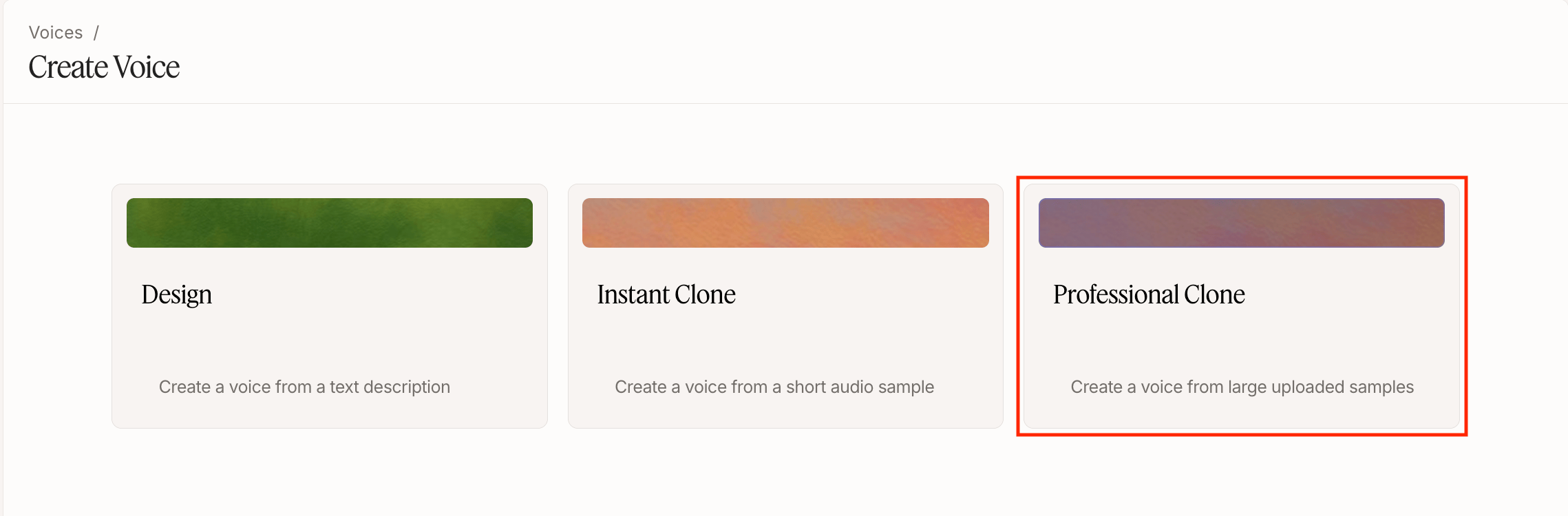 On the Create Voice page, select **Professional Clone**.
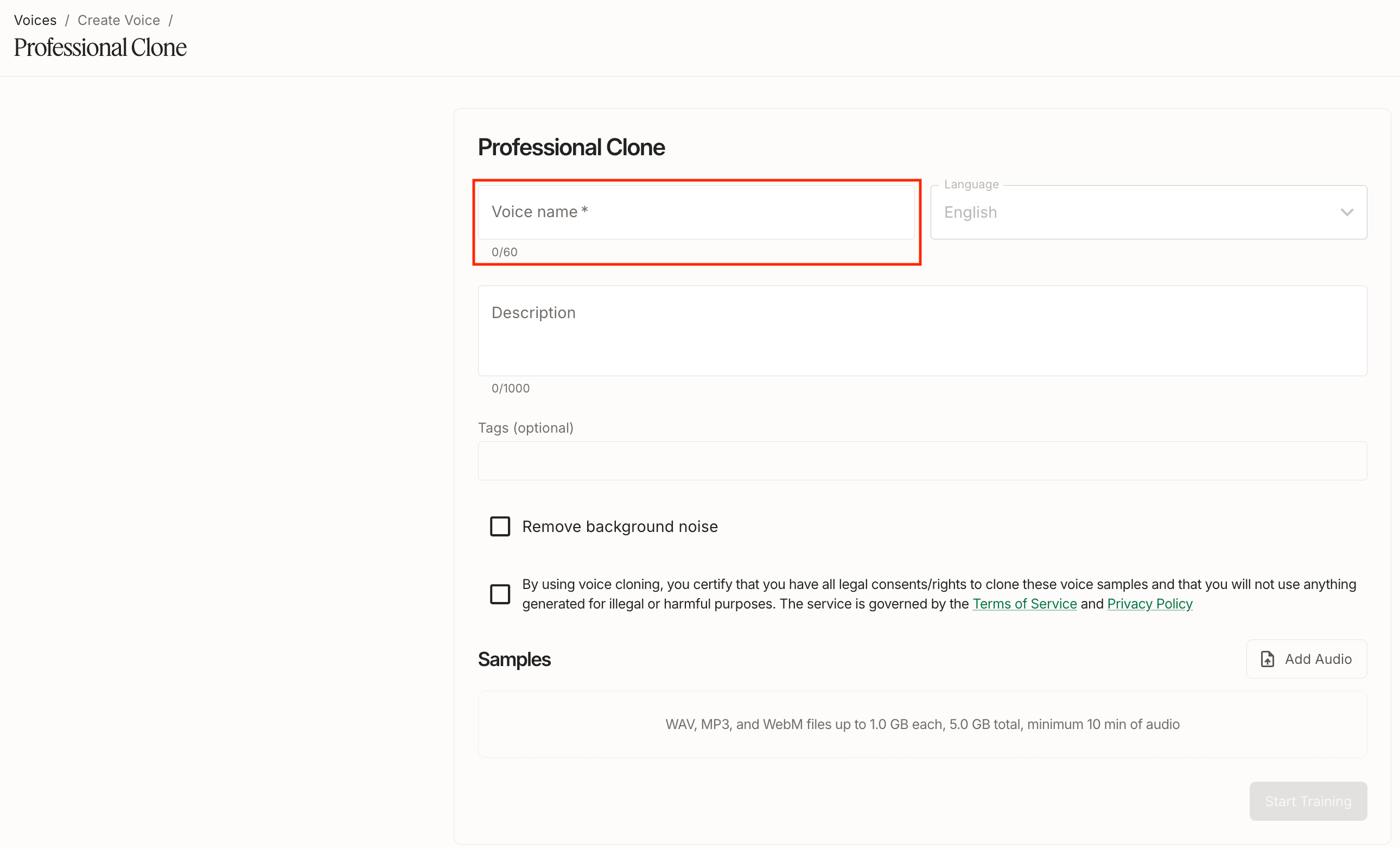 Enter a **Voice name**. Description and tags are optional.
Only English is currently supported for Professional Voice Cloning.
Enter a **Voice name**. Description and tags are optional.
Only English is currently supported for Professional Voice Cloning.
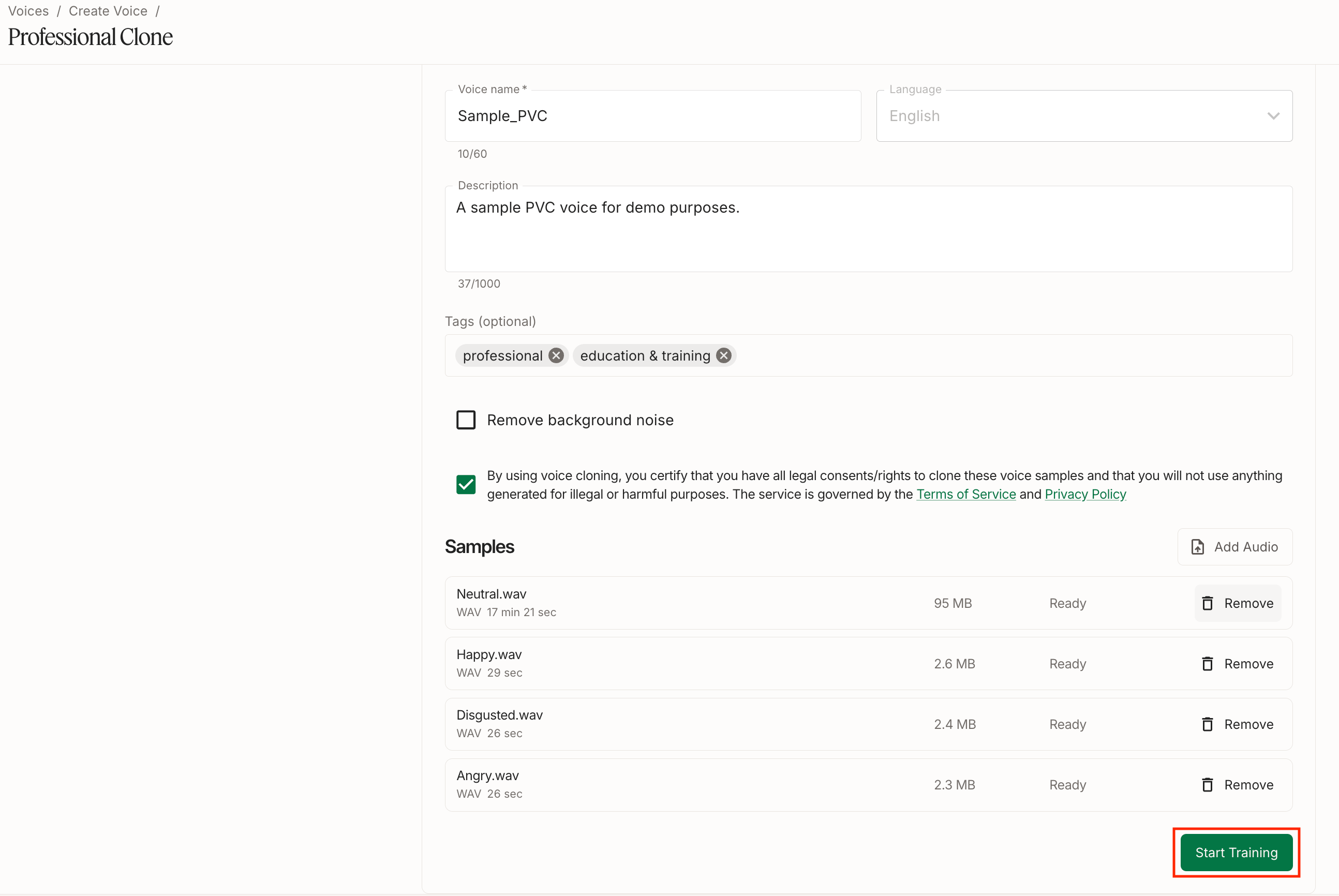 Click **Add Audio** to upload your audio samples.
* You can upload multiple audio files, up to a combined limit of 5GB.
* Uploaded audio must total at least 10 minutes combined. More clean, high-quality audio generally produces a better clone.
Enable **Remove background noise** if you wish to remove background noise from your audio. Confirm you have the rights to clone the voice, then click **Start Training**.
Check out our [Voice Cloning Best Practices](/tts/best-practices/voice-cloning#best-practices-for-professional-voice-cloning) for tips on recording and preparing audio for a professional voice clone.
Click **Add Audio** to upload your audio samples.
* You can upload multiple audio files, up to a combined limit of 5GB.
* Uploaded audio must total at least 10 minutes combined. More clean, high-quality audio generally produces a better clone.
Enable **Remove background noise** if you wish to remove background noise from your audio. Confirm you have the rights to clone the voice, then click **Start Training**.
Check out our [Voice Cloning Best Practices](/tts/best-practices/voice-cloning#best-practices-for-professional-voice-cloning) for tips on recording and preparing audio for a professional voice clone.
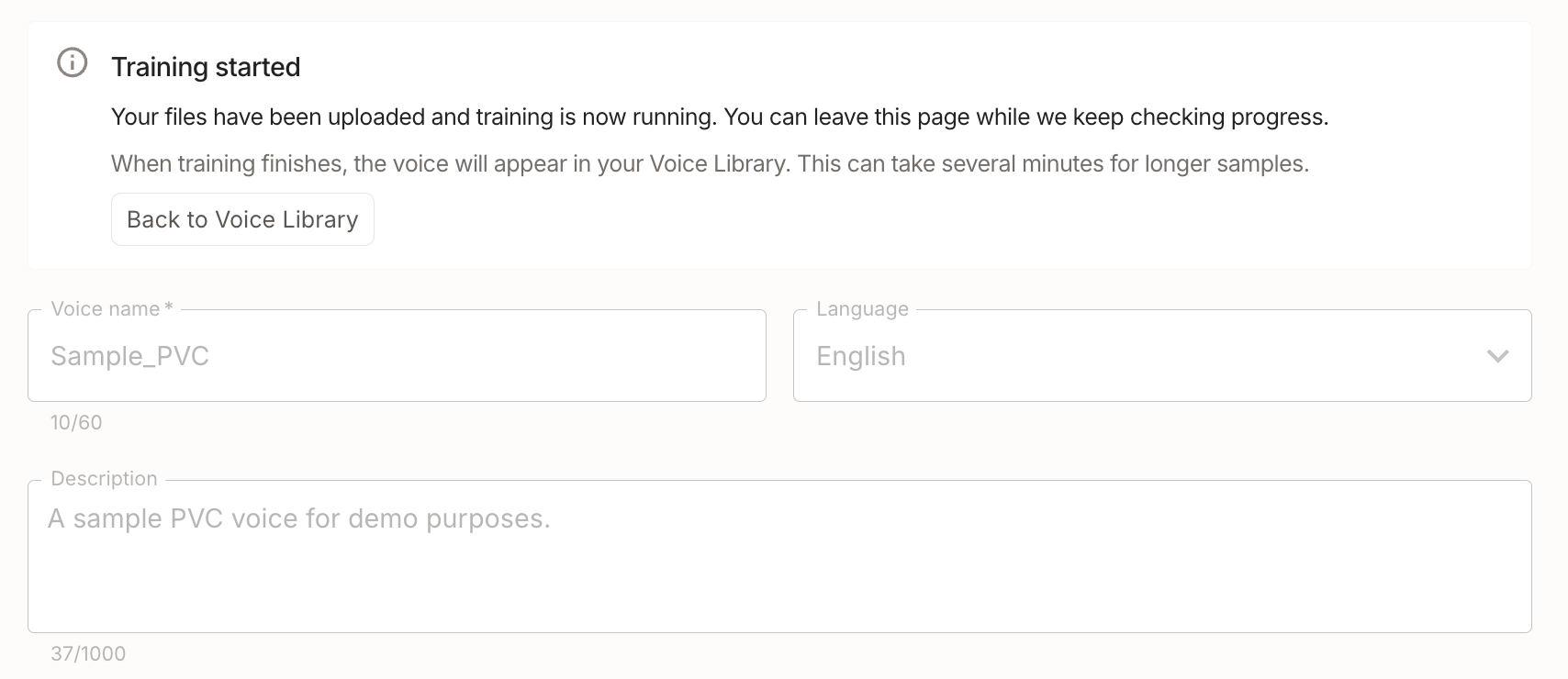 Once training starts, you can leave the page — training continues in the background and can take several minutes for longer samples.
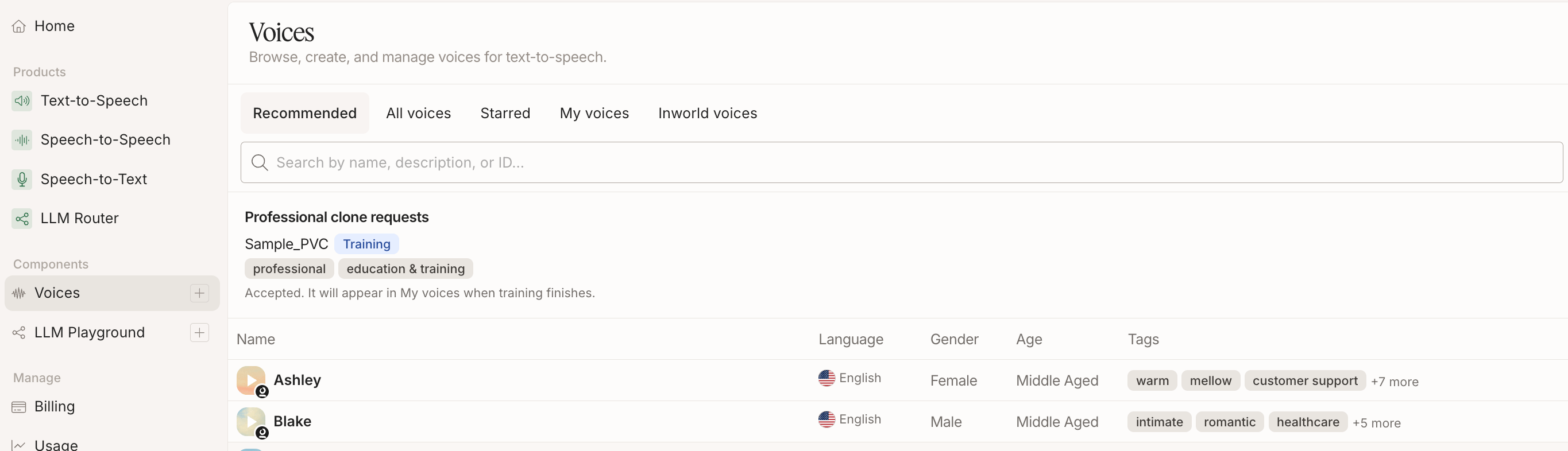 Training status is displayed on the Voices page, where your request appears under **Professional clone requests** along with its current status.
 Once training finishes, the voice moves to **My voices**, ready to use in the TTS Playground or via the TTS API. To use it via the TTS API, copy the voice ID and use that value for the `voiceId` when making an API call. See our [Quickstart](/quickstart-tts) to learn how to make your first TTS API call.
## Next Steps
Looking for more tips and tricks? Check out the resources below to get started!
Clone a voice in seconds with just a few seconds of audio.
Learn best practices for producing high-quality professional voice clones.
Learn how to make your first TTS API call in minutes.
Once training finishes, the voice moves to **My voices**, ready to use in the TTS Playground or via the TTS API. To use it via the TTS API, copy the voice ID and use that value for the `voiceId` when making an API call. See our [Quickstart](/quickstart-tts) to learn how to make your first TTS API call.
## Next Steps
Looking for more tips and tricks? Check out the resources below to get started!
Clone a voice in seconds with just a few seconds of audio.
Learn best practices for producing high-quality professional voice clones.
Learn how to make your first TTS API call in minutes.