> ## Documentation Index
> Fetch the complete documentation index at: https://dev.docs.inworld.ai/llms.txt
> Use this file to discover all available pages before exploring further.
# STT Playground
> Record live or upload audio to transcribe across providers and models
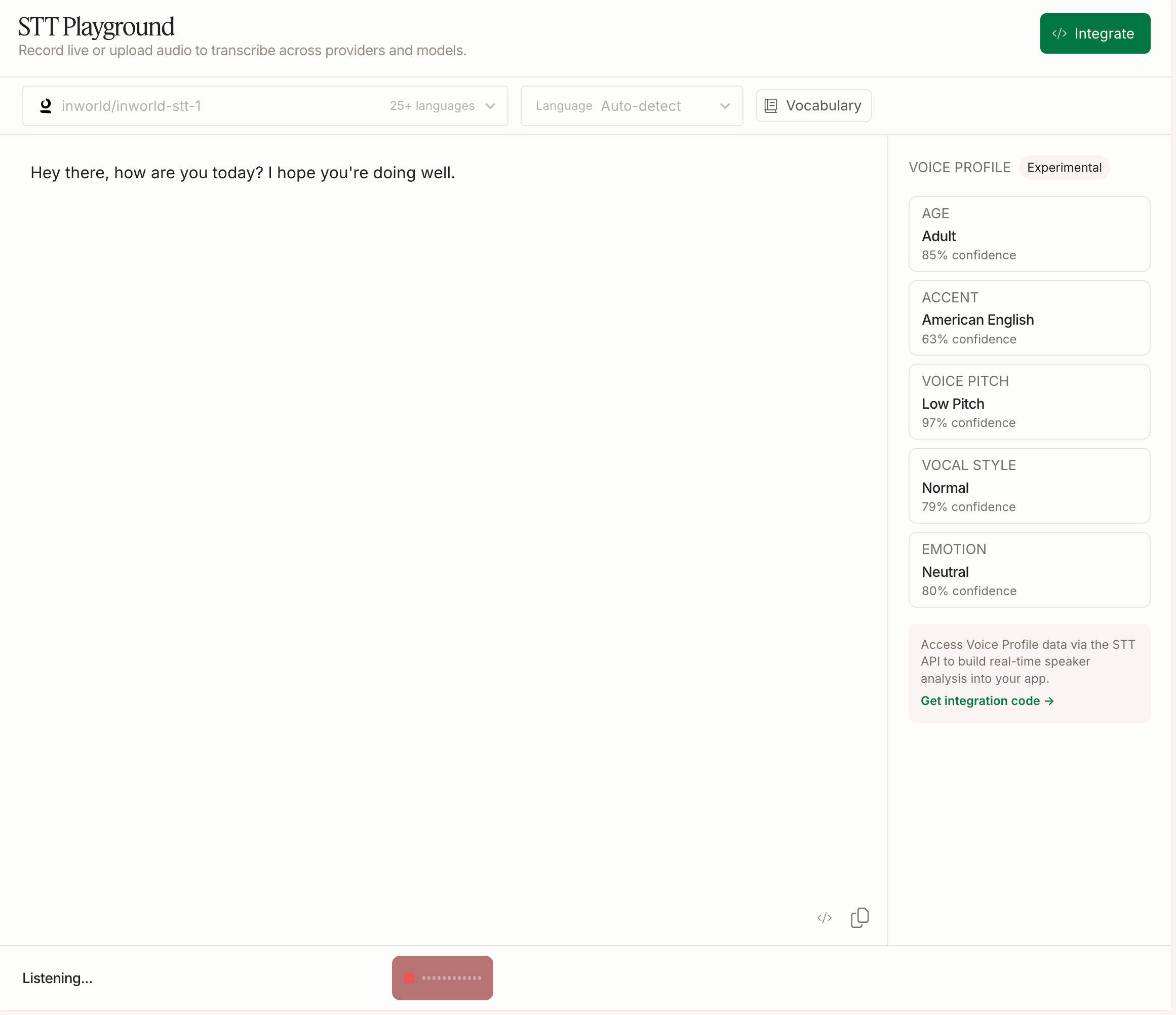
The STT Playground makes it easy to try out Inworld's Speech-to-Text capabilities through an interactive playground. Use it to compare transcription models, test language hints and custom vocabulary, and watch Voice Profile analyze the speaker in real time — all before writing a line of code.
 ## Get Started
In [Portal](https://platform.inworld.ai/), select **Speech-to-Text** from the left-hand side panel.
Click the model dropdown at the top of the playground to browse available models. Each entry shows its provider and language coverage — from Inworld's own `inworld/inworld-stt-1` to models from Groq, AssemblyAI, Soniox, and Deepgram. See the [model comparison](/stt/overview#model-comparison) for details on each.
Press the mic button to transcribe live from your microphone, or use the upload button to transcribe an audio file. The status bar shows **Ready** when the playground can accept audio and **Listening…** while recording.
Input options depend on the selected model's endpoint support — for example, `groq/whisper-large-v3` transcribes uploaded files only (no live streaming). See the [model comparison](/stt/overview#model-comparison) for each model's endpoints.
The transcript appears in real time as you speak. When you're done, use the copy button to grab the text, or the code button to view the equivalent API request.
## Advanced Features
For greater control over transcription, try the following:
1. **Language hint** — The **Language** dropdown defaults to **Auto-detect**, which recognizes the spoken language automatically. Select a specific language to give the model a hint when you know the audio's language in advance — this generally improves accuracy, especially for short utterances. See [Language Support](/stt/languages) for how hints behave.
2. **Custom vocabulary** — Click **Vocabulary** to add key terms (names, jargon, acronyms) that bias recognition toward them. Terms are added as chips, and the button shows how many are active. This is a soft bias rather than a hard keyword lock — test it on the terms the baseline actually misses. The equivalent API field is [`prompts`](/stt/quickstart#make-your-first-stt-api-request).
3. **Voice Profile** — The panel on the right analyzes the speaker alongside transcription, showing **Age**, **Accent**, **Voice Pitch**, **Vocal Style**, and **Emotion**, each with a confidence score. It populates after transcription begins. See [Voice Profiles](/stt/voice-profiles) for the full category reference.
## From Playground to Code
Click **Integrate** (top right) — or **Get integration code** in the Voice Profile panel — to generate an API request matching your current playground configuration: model, language hint, vocabulary, and Voice Profile settings.
## Next Steps
Ready to build? Here's where to go next.
Make your first STT API call in minutes.
Analyze speaker characteristics alongside transcription.
Language coverage and hinting behavior.
## Get Started
In [Portal](https://platform.inworld.ai/), select **Speech-to-Text** from the left-hand side panel.
Click the model dropdown at the top of the playground to browse available models. Each entry shows its provider and language coverage — from Inworld's own `inworld/inworld-stt-1` to models from Groq, AssemblyAI, Soniox, and Deepgram. See the [model comparison](/stt/overview#model-comparison) for details on each.
Press the mic button to transcribe live from your microphone, or use the upload button to transcribe an audio file. The status bar shows **Ready** when the playground can accept audio and **Listening…** while recording.
Input options depend on the selected model's endpoint support — for example, `groq/whisper-large-v3` transcribes uploaded files only (no live streaming). See the [model comparison](/stt/overview#model-comparison) for each model's endpoints.
The transcript appears in real time as you speak. When you're done, use the copy button to grab the text, or the code button to view the equivalent API request.
## Advanced Features
For greater control over transcription, try the following:
1. **Language hint** — The **Language** dropdown defaults to **Auto-detect**, which recognizes the spoken language automatically. Select a specific language to give the model a hint when you know the audio's language in advance — this generally improves accuracy, especially for short utterances. See [Language Support](/stt/languages) for how hints behave.
2. **Custom vocabulary** — Click **Vocabulary** to add key terms (names, jargon, acronyms) that bias recognition toward them. Terms are added as chips, and the button shows how many are active. This is a soft bias rather than a hard keyword lock — test it on the terms the baseline actually misses. The equivalent API field is [`prompts`](/stt/quickstart#make-your-first-stt-api-request).
3. **Voice Profile** — The panel on the right analyzes the speaker alongside transcription, showing **Age**, **Accent**, **Voice Pitch**, **Vocal Style**, and **Emotion**, each with a confidence score. It populates after transcription begins. See [Voice Profiles](/stt/voice-profiles) for the full category reference.
## From Playground to Code
Click **Integrate** (top right) — or **Get integration code** in the Voice Profile panel — to generate an API request matching your current playground configuration: model, language hint, vocabulary, and Voice Profile settings.
## Next Steps
Ready to build? Here's where to go next.
Make your first STT API call in minutes.
Analyze speaker characteristics alongside transcription.
Language coverage and hinting behavior.